Adding External Editors
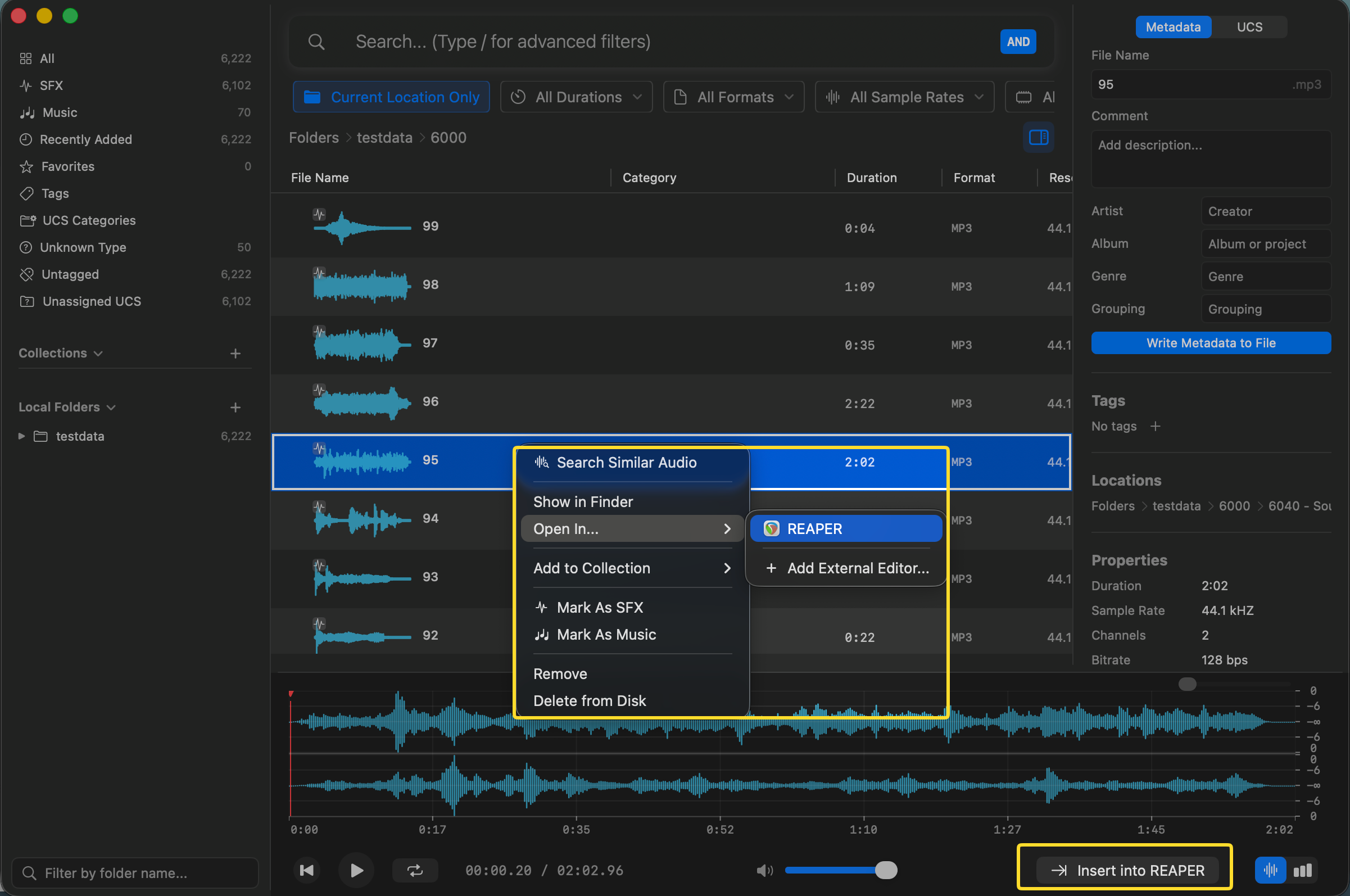
Curlo supports external editors, so you can open audio files in another application or insert selected audio files and clips directly at the cursor position in your chosen editor.
Note: External editor integration is not available in the Mac App Store version of Curlo.
Add an External Editor
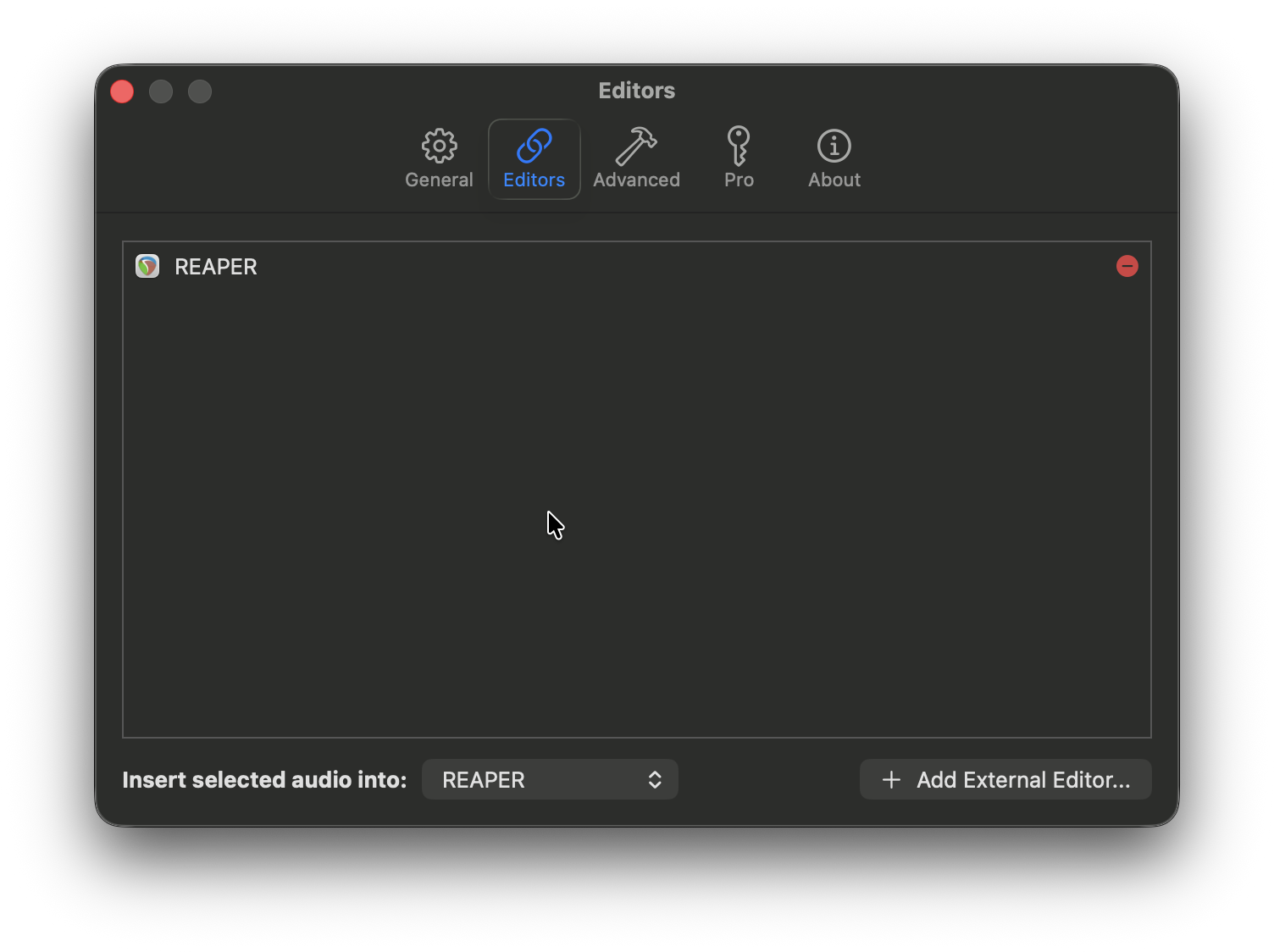
You can add external editors in Curlo Settings:
- Open Settings in Curlo.
- Find the Editors section.
- Add the editor you want to use and select its application.
Open Audio in an External Editor
After adding an editor, select an audio file in Curlo and open it with your chosen external editor. Curlo sends the selected audio file to that application so you can continue editing it there.
Insert Audio at the Editor Cursor
You can also insert a selected audio file or a selected audio clip directly at the current cursor position in an external editor.
- Select an audio file, or make a selection in its waveform to use a clip.
- Use the Insert into… button.
- Alternatively, press Option+I to insert into the selected external editor. This shortcut can be changed in Settings.