Installing Curlo
Only install Curlo from the official download link on this website.
Download and Install Curlo
Click Download for Mac on the Curlo website and wait for the .dmg file to finish downloading. Open the .dmg file, then drag Curlo into the Applications folder.
Open Curlo for the First Time
Open Applications, then try to open Curlo.
If macOS blocks the app because it has not been notarized or the developer cannot be verified, follow Apple’s temporary override flow:
- Open System Settings.
- Go to Privacy & Security, scroll down, and click Open Anyway.
- When the warning appears again, click Open.
After this approval, Curlo is saved as an exception and can be opened normally. For details, see Apple Support.
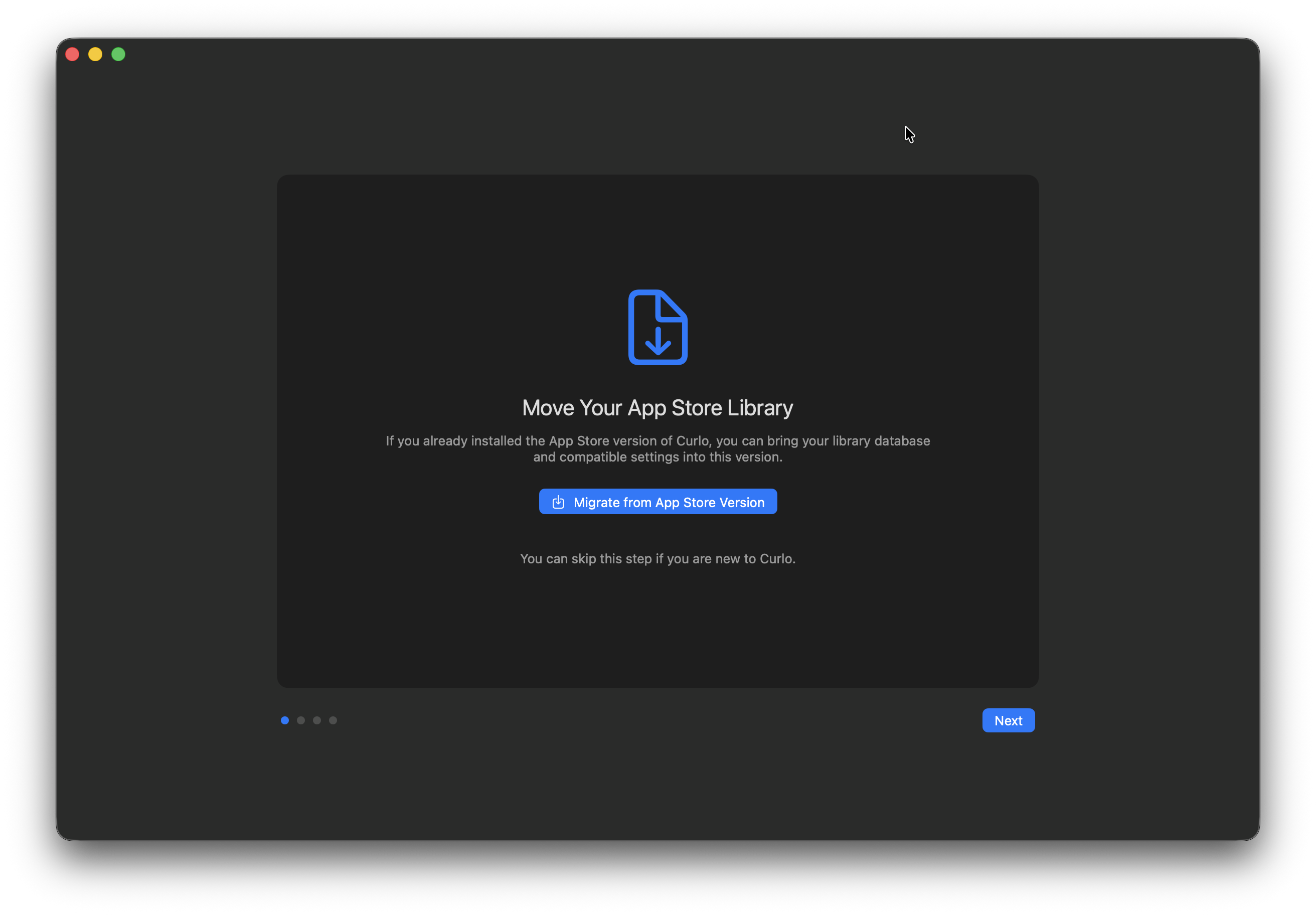
Migrate Data from the Mac App Store Version
The first time you open Curlo, it may ask whether you want to migrate existing data from the Mac App Store version.
If you have used the Mac App Store version before, click the migration button. This helps keep your existing folders and settings, so you do not need to add folders and configure Curlo again.
If this is your first time using Curlo, you can ignore this step.