
Managing Collections
Collections allow you to group audio files together virtually for specific projects or themes, without changing their original folder structure on your hard drive.
Creating a Collection
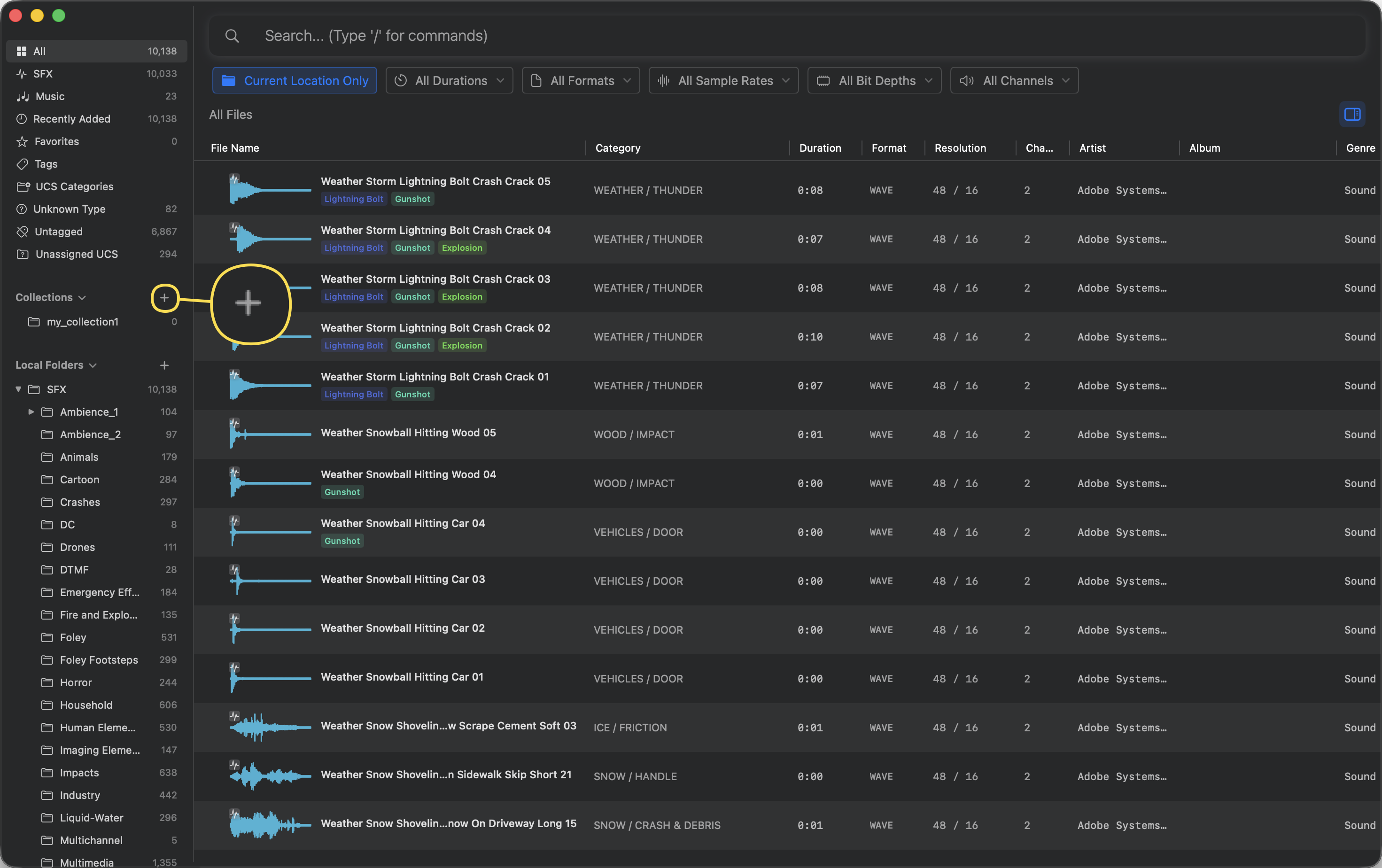
To create a new collection:
- In the left Sidebar, hover over the Collections section header.
- Click the
+button that appears. - Enter a name for your new collection and press
Enter.
Creating a Sub-collection
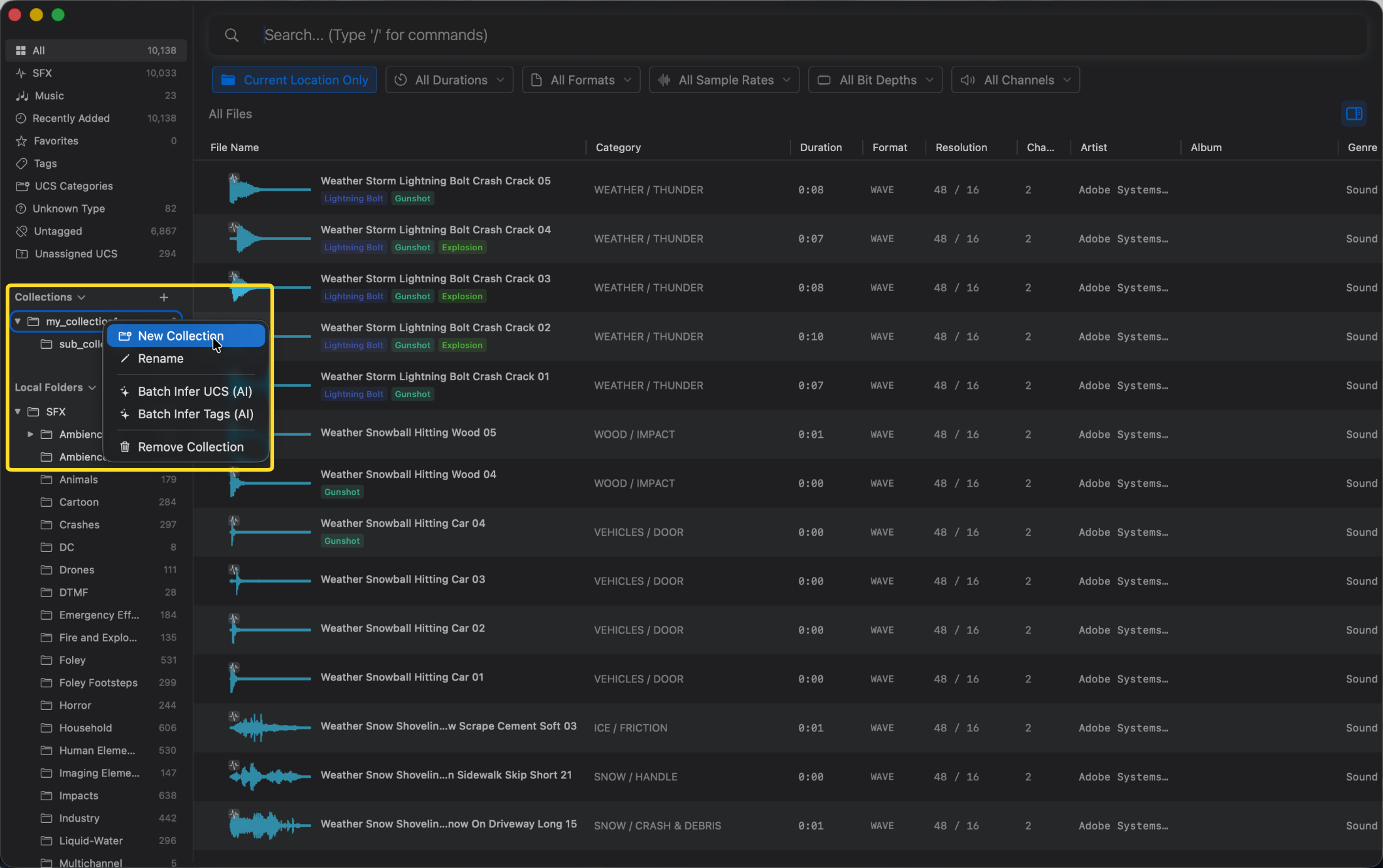
You can organize collections hierarchically:
- Right-click an existing collection in the Sidebar.
- Select New Collection from the context menu.
- Enter a name for the new sub-collection.
Adding Files to a Collection
There are two ways to add audio files to your collections:
Method 1: Drag and Drop
- Select one or more files in the asset list.
- Drag them directly into the desired collection in the Sidebar.

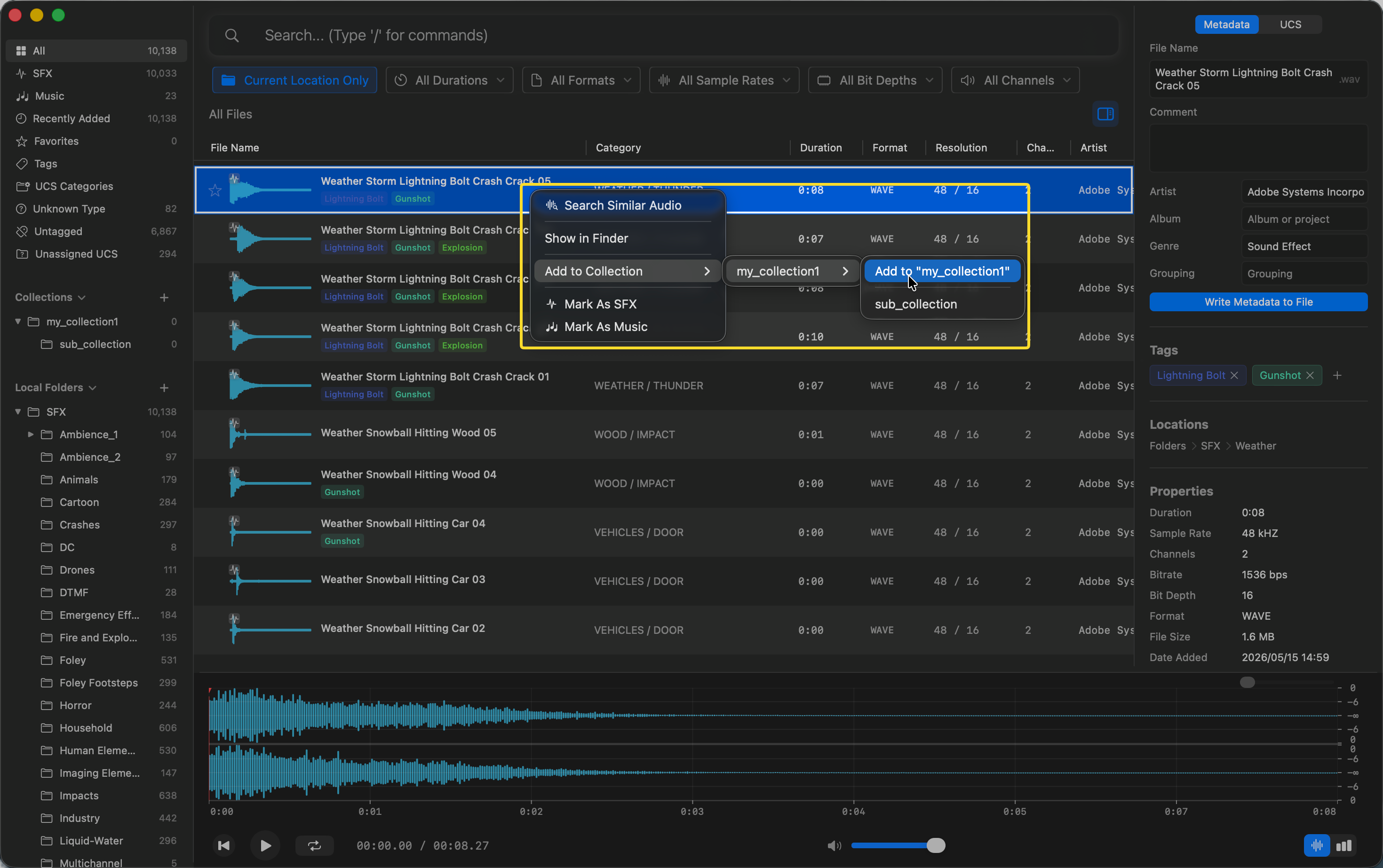
Method 2: Context Menu
- Select one or more files in the asset list.
- Right-click the selection.
- Navigate to Add to Collection and choose the target collection from the list.
Removing Files from a Collection
To remove a file from a collection:
- Click on the collection in the Sidebar to view its contents.
- Select the file(s) you want to remove.
- Right-click and choose Remove from Collection. (Note: This does not delete the file from your local folder).
Tips
- A single audio file can exist in multiple collections simultaneously.
- Collections are perfect for gathering sound effects for a specific video project or game level.
- Deleting a collection only removes the virtual grouping; your actual audio files remain completely untouched.