DAW Integration
Curlo integrates seamlessly with your favorite Digital Audio Workstation (DAW) or video editor. Drag and drop audio files directly from Curlo into your project timeline.
Drag & Drop Files
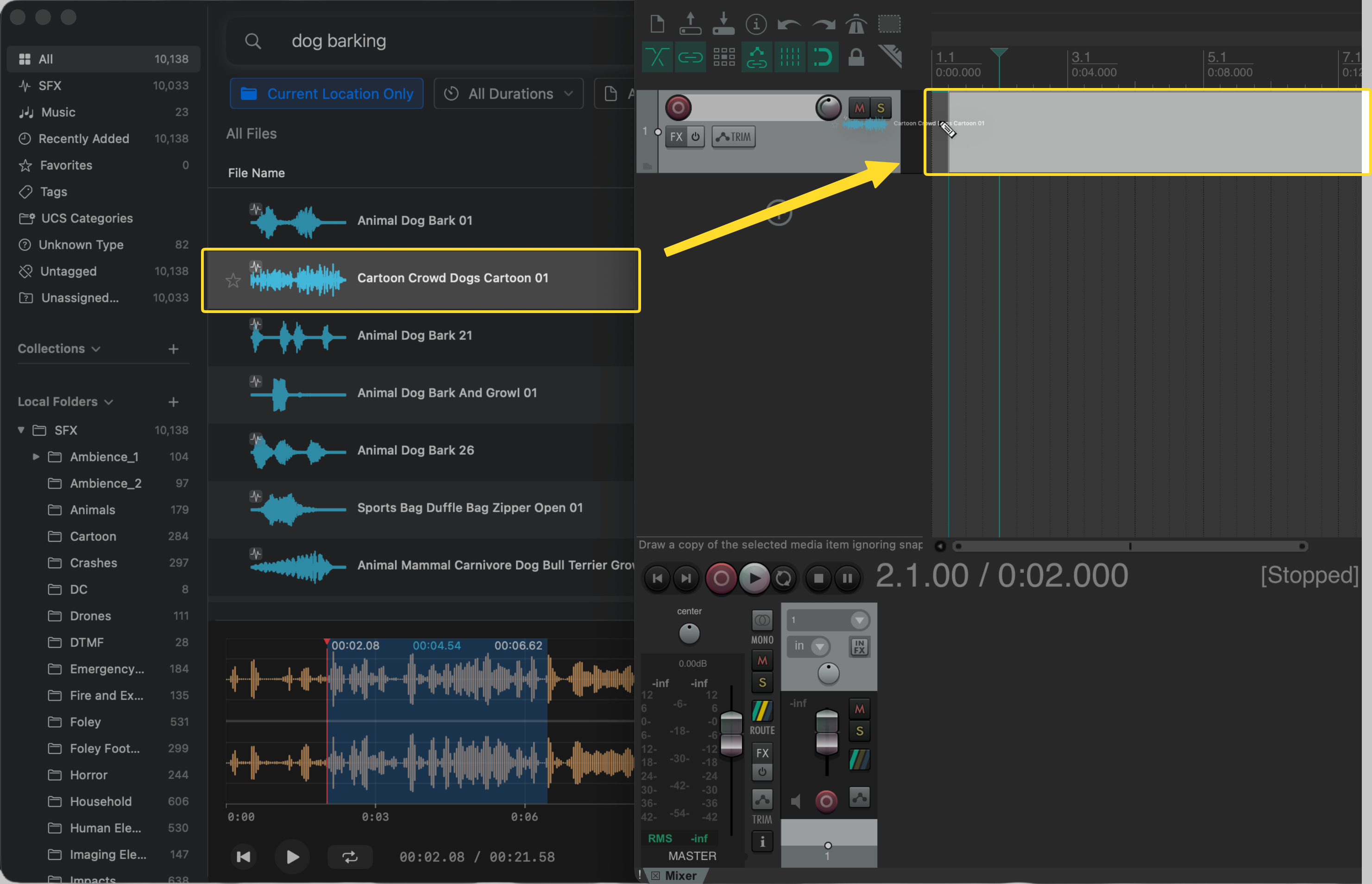
To add an entire audio file to your project:
- Find the audio file you want in Curlo.
- Click and hold on the file row in the asset list.
- Drag it directly to your DAW’s timeline, track, or browser.
- Release to drop the file.
Drag & Drop Clips
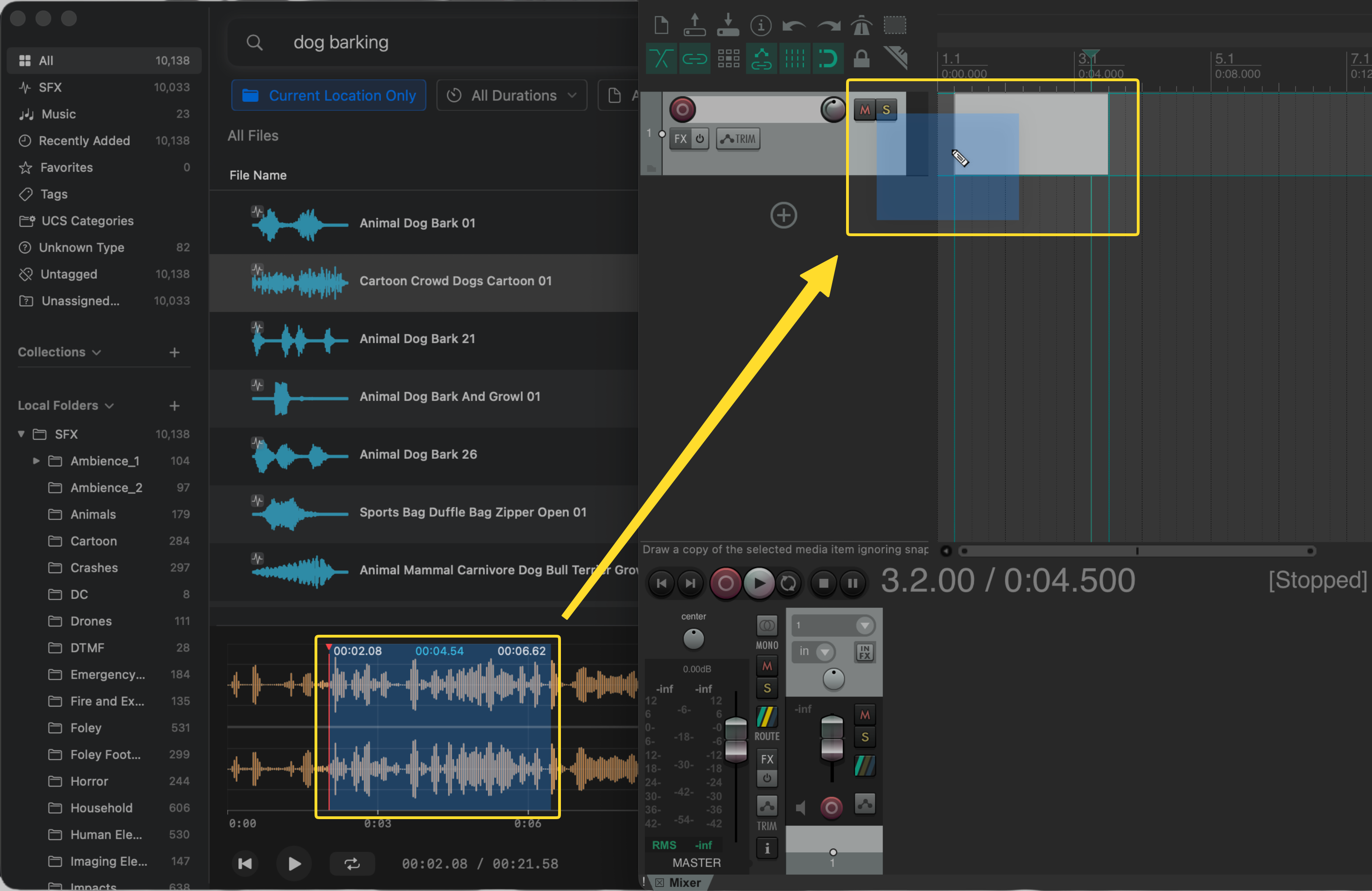
Often, you only need a specific part of a sound effect or a short musical phrase. Curlo allows you to select and drag just the portion you need:
- Select an audio file to view its waveform in the bottom viewer.
- Click and drag on the waveform to make a time selection.
- Drag the highlighted area directly into your DAW.
- The clip will be instantly extracted and imported as a new audio clip in your project.
Bounce Clips
In addition to dragging into your DAW, you can also bounce a selected clip directly to a local folder or a Curlo collection.
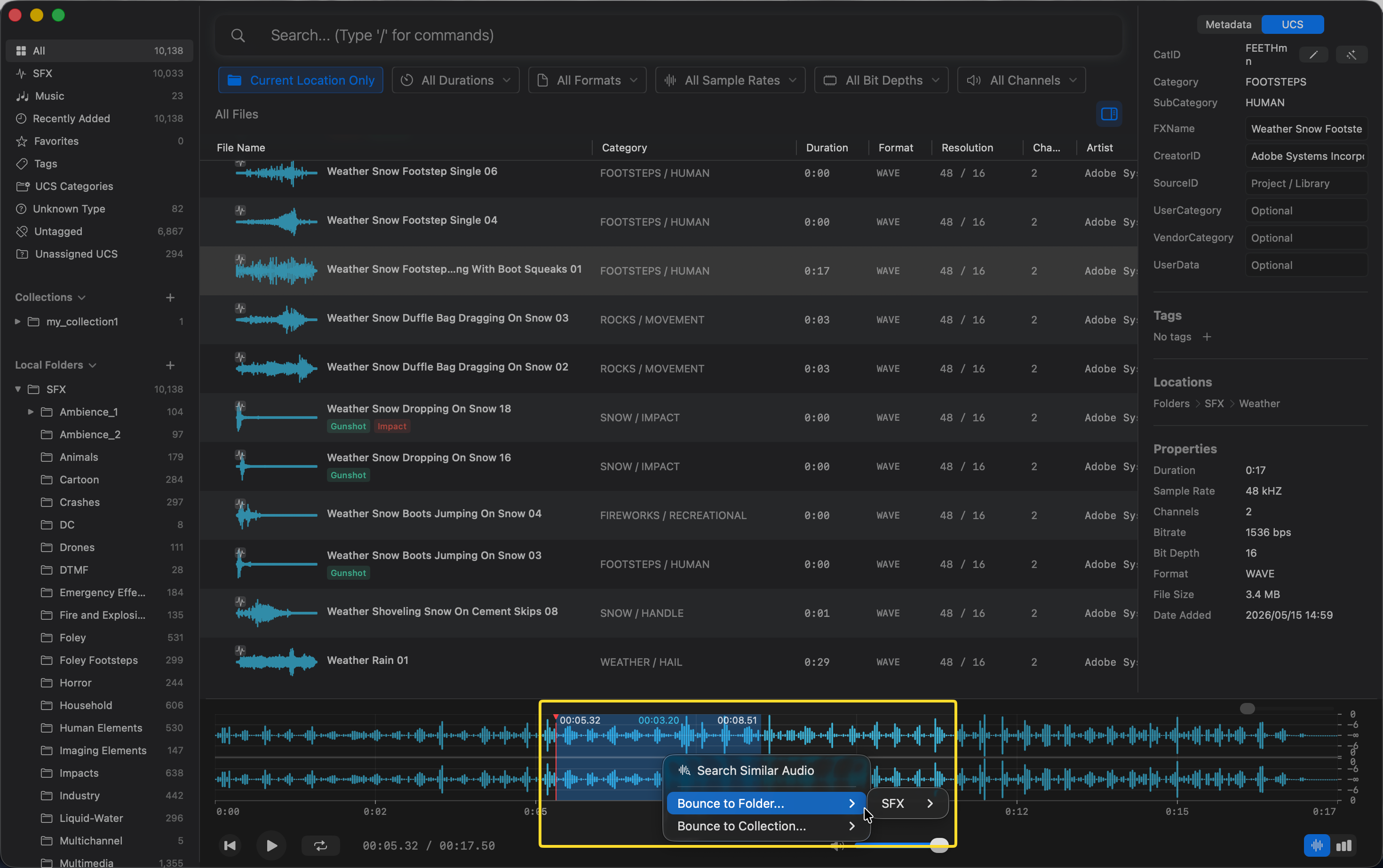
- Select an audio file and make a waveform selection in the Viewer.
- Right-click the highlighted area to open the context menu.
- Choose Bounce to Folder or Bounce to Collection:
- Bounce to Folder — exports the clip as a new audio file to a folder you choose.
- Bounce to Collection — exports the clip as a new file saved next to the original audio on disk, and automatically adds it to the selected collection.
Supported DAWs
Curlo’s drag & drop works with any DAW or editor that supports standard macOS file drag operations, including:
- Pro Tools
- Logic Pro
- Ableton Live
- Reaper
- Cubase / Nuendo
- Studio One
- FL Studio
- Adobe Audition
- DaVinci Resolve
- Final Cut Pro
- …
Tips
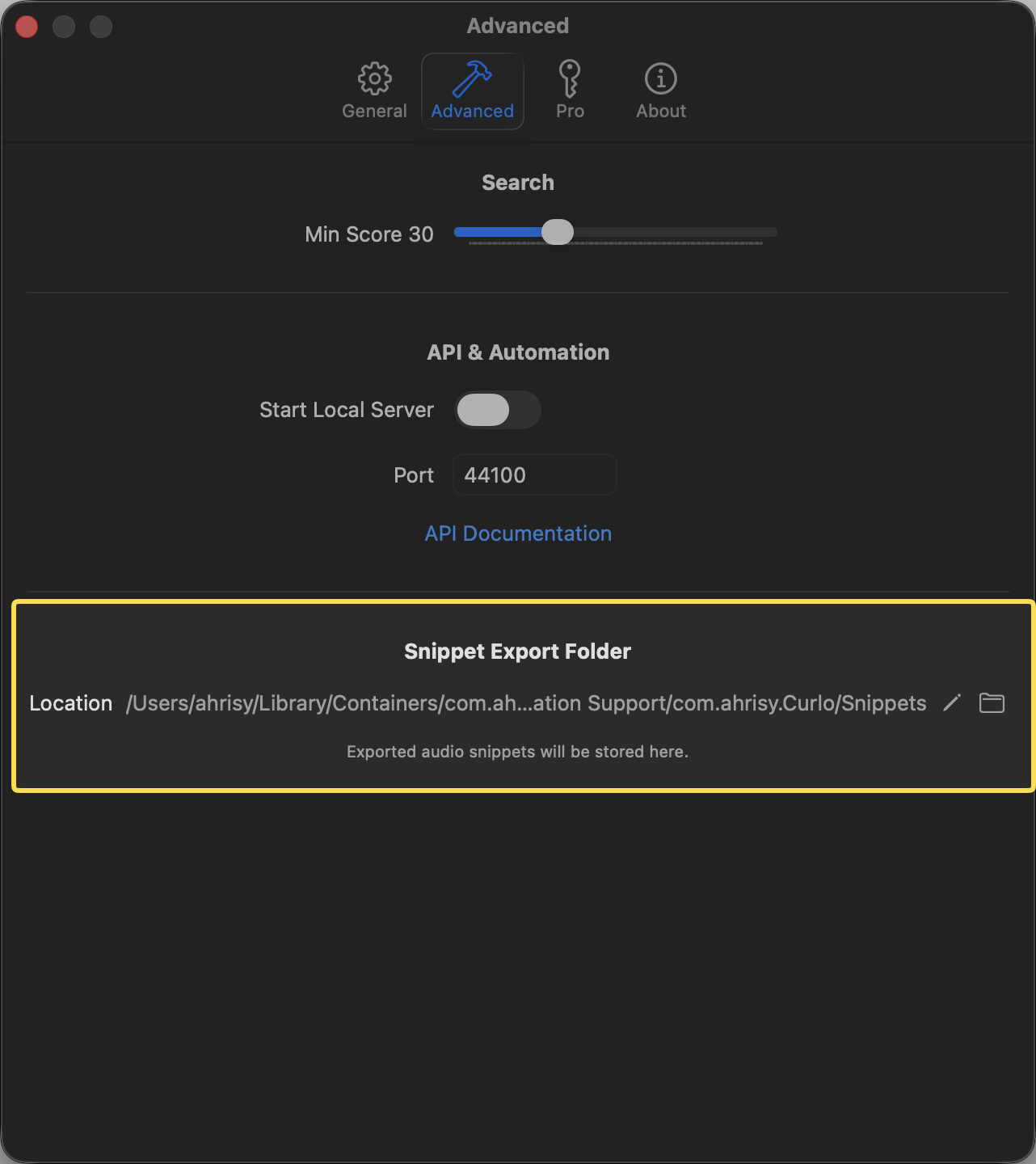
- The dragged clips are stored in a dedicated export folder. You can customize this folder’s location in the Curlo Settings.