
Adding Local Folders & Files
To start using Curlo, you need to add at least one folder containing your audio files. Curlo will scan and index all supported audio files, making them instantly searchable.
Add a Folder
- In the Sidebar, find the Local Folders section
- Click the ”+” button next to “Local Folders”
- A macOS file picker will appear — navigate to the folder containing your audio files
- Click Open
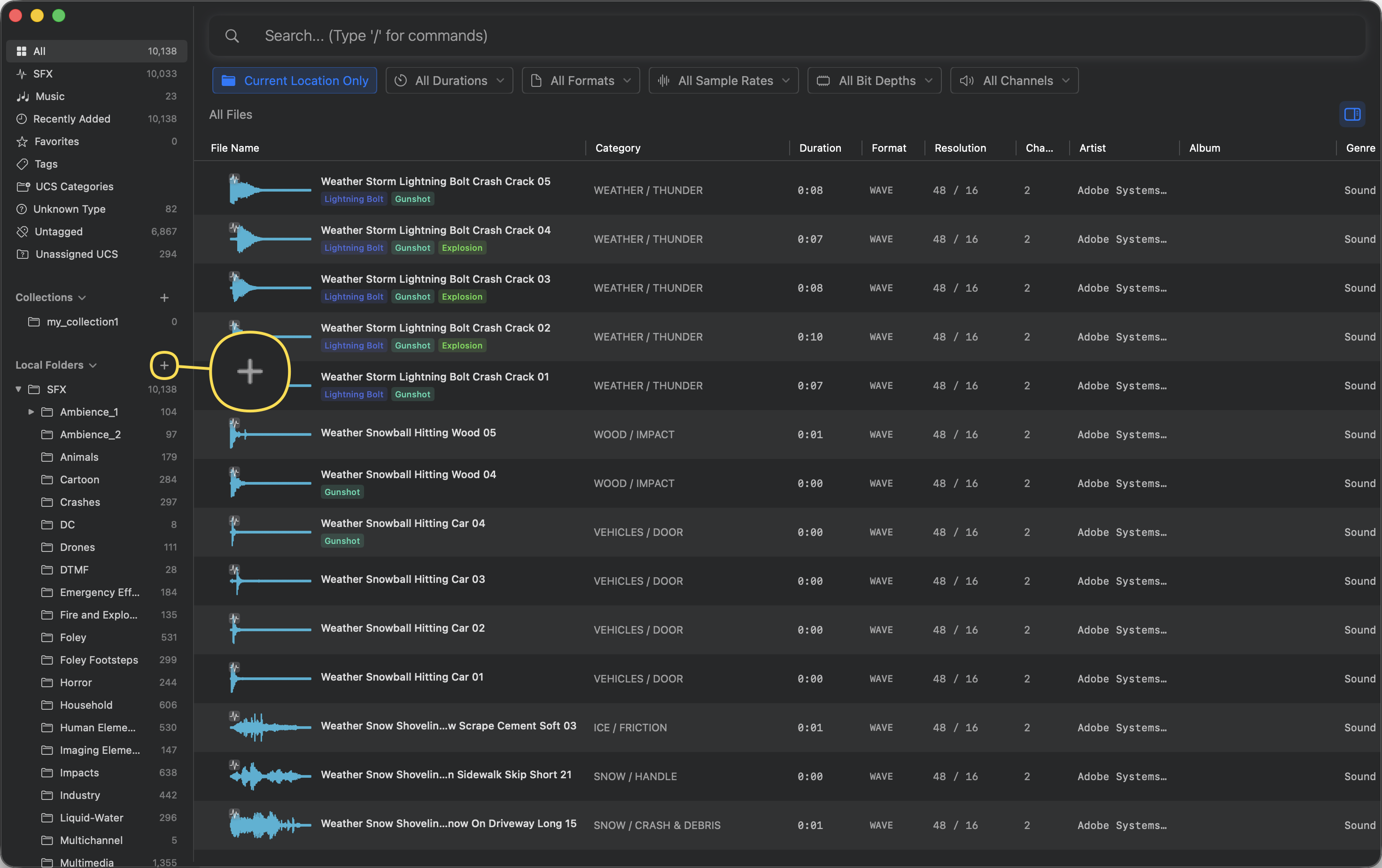
Curlo will immediately begin scanning and indexing all supported audio files within the selected folder (including subfolders).
Note: You can add multiple folders from different locations on your Mac. Each folder appears as a separate tree in the Local Folders section.
Add Individual Files
You can also drag and drop individual audio files directly into the sidebar to add them to a specific folder.
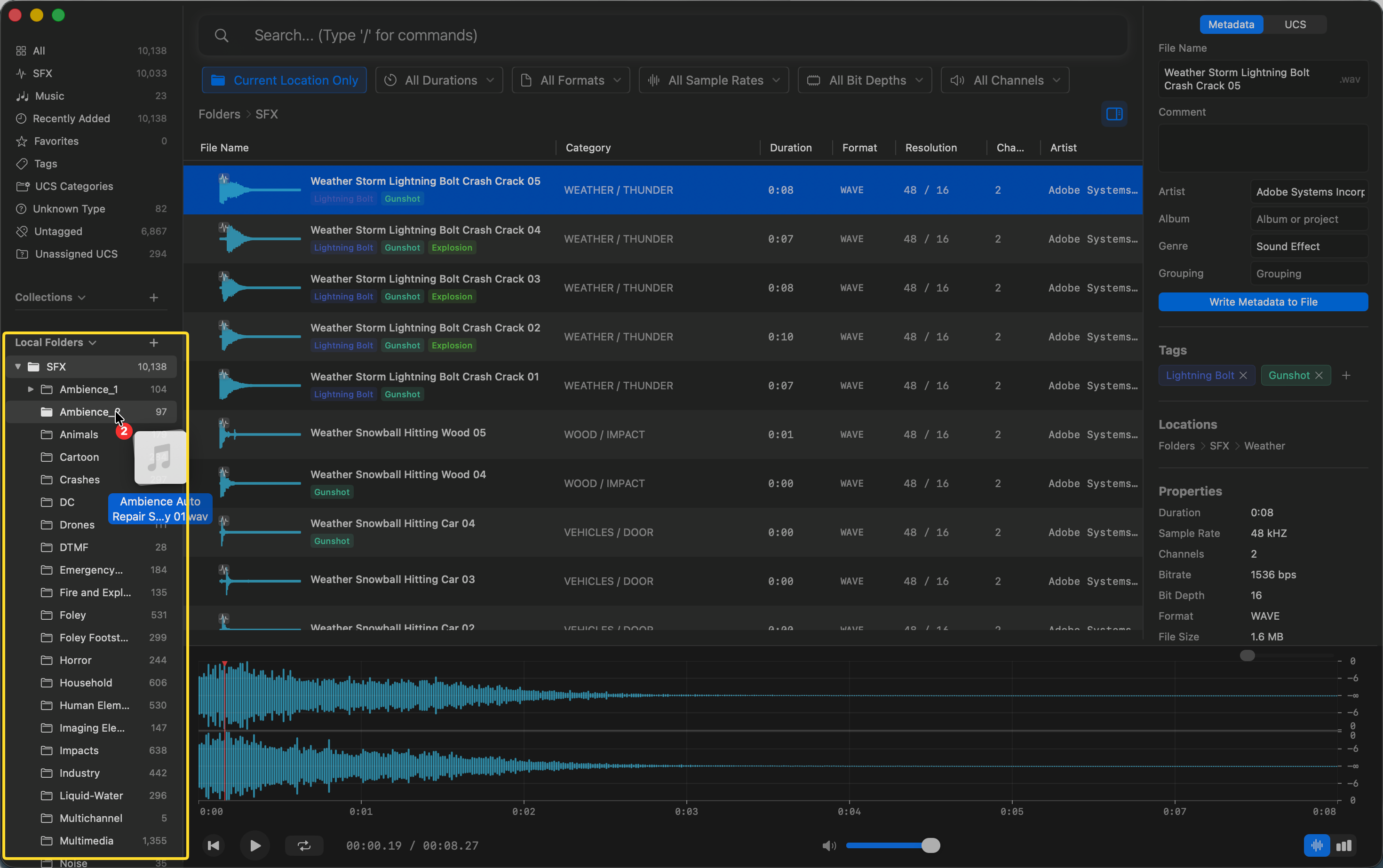
Simply drag files from Finder and drop them onto the desired folder in the sidebar. Curlo will show a dialog asking whether you want to move or copy the file to the target folder. Once confirmed, the file will be automatically indexed.
Rescanning Folders
If you’ve added, removed, or modified audio files outside of Curlo, you can rescan a folder to update the index.
- In the Local Folders section of the sidebar, right-click on the folder you want to update
- Select “Rescan” from the context menu
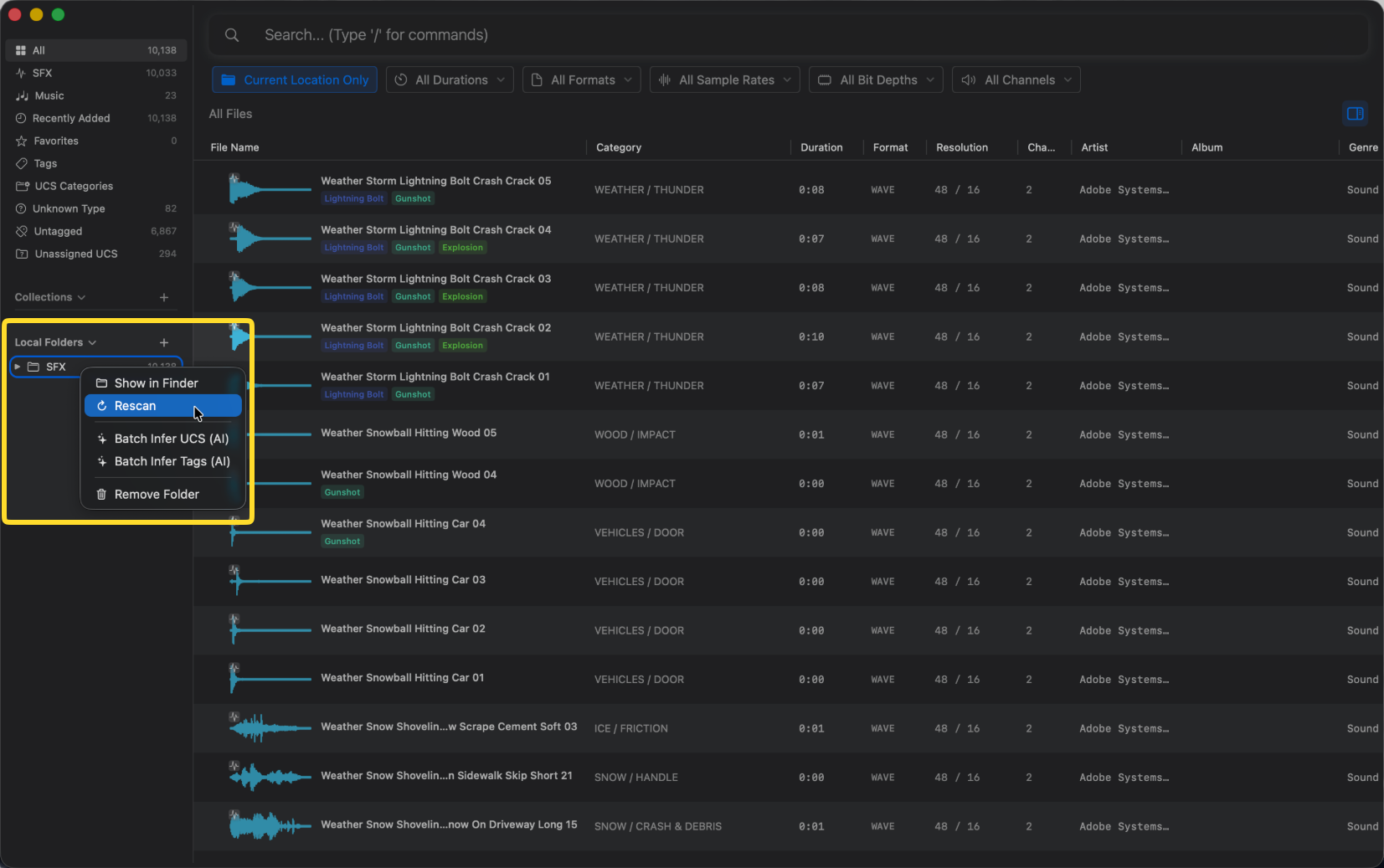
The context menu also provides additional options:
- Show in Finder — Open the folder location in macOS Finder
- Star Folder — Add frequently used folders to your favorites for quick access (see below)
- Batch Infer UCS (AI) — Automatically classify files using AI-powered UCS inference
- Batch Infer Tags (AI) — Automatically generate tags for all files in the folder
- Remove Folder — Remove the folder from Curlo (this does not delete any files from disk)
Tip: Rescanning is incremental — Curlo only processes new or changed files, so subsequent scans are much faster than the initial import.
Starring Frequently Used Folders
If your local folder tree runs deep, you can star the folders you use most and show only those in the sidebar:
- Right-click any folder, at any depth, and choose Star Folder
- Click the star button next to the Local Folders section header to toggle between Show all folders and Show starred folders
The starred view is a flat list: starred folders appear individually, pulled out of their original hierarchy — including folders buried deep in subdirectories. Right-click a folder and choose Unstar Folder to remove it again.
Tip: When the starred view is empty, the sidebar shows a hint — just right-click any folder and choose Star Folder to get started.
Supported Audio Formats
Curlo supports all major professional audio formats used in sound design, music production, and post-production:
*.3g2, *.3gp, *.3gp2, *.3gpp, *.669, *.aac, *.ac3, *.adts, *.aif, *.aifc, *.aiff, *.amf, *.amr, *.ape, *.asy, *.au, *.avr, *.awb, *.caf, *.caff, *.eac3, *.ec3, *.flac, *.htk, *.iff, *.it, *.latm, *.loas, *.m1a, *.m2a, *.m4a, *.m4b, *.m4r, *.mat, *.mod, *.mov, *.mp1, *.mp2, *.mp3, *.mp4, *.mpa, *.mpc, *.mpeg, *.mpg4, *.mtm, *.oga, *.ogg, *.okt, *.opus, *.paf, *.psm, *.ptm, *.pvf, *.qt, *.raw, *.rf64, *.s3m, *.sd2, *.sds, *.sf, *.shn, *.snd, *.spx, *.stm, *.tta, *.voc, *.w64, *.wav, *.wv, *.wve, *.xhe, *.xi, *.xm
Tips
- Free version supports up to 5,000 indexed files
- Upgrade to Pro for unlimited file indexing