
Editing & Writing Metadata
Curlo lets you view, edit, and write metadata directly to your audio files, keeping your library organized and searchable.
Viewing & Editing Metadata
- Select any audio file in your library.
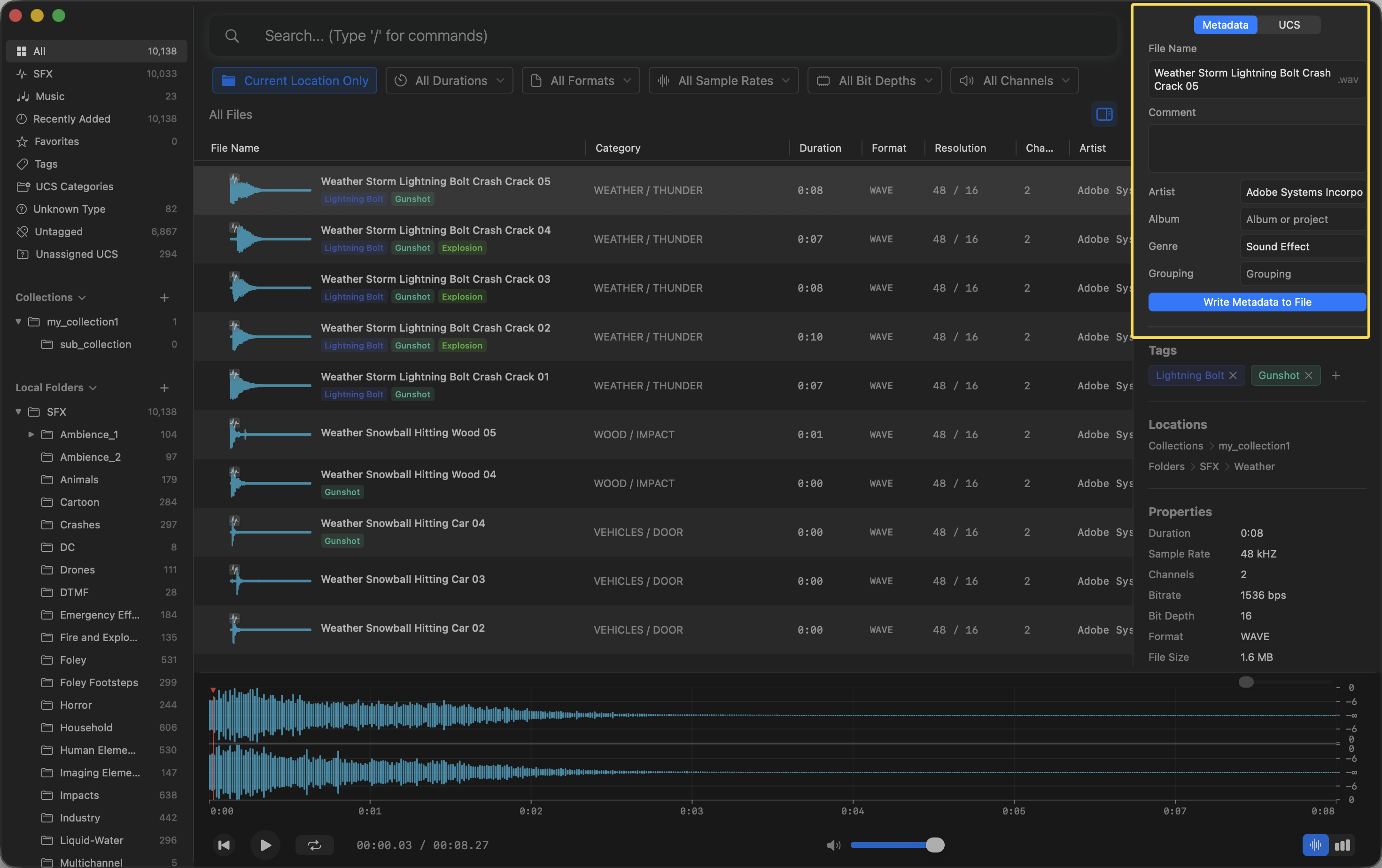
- The Inspector panel on the right side of the screen will show all available information under the Metadata tab.
- You can click on fields like
Comment,Artist,Album,Genre, andGroupingto edit them. PressEnterto save your changes.
Writing Changes
Curlo does not modify your original files until you explicitly tell it to.
- Make your desired changes in the Metadata tab.
- Click the blue Write Metadata to File button at the bottom of the section.
- Curlo will embed the new metadata directly into the audio file, ensuring other applications can read it.
Batch Writing Metadata
When you need to write metadata back to an entire folder or group, you don’t have to go file by file:
- In the left sidebar, right-click any group — built-in groups like All, SFX, and Music, any collection, or any local folder
- Choose Write Metadata to Files from the context menu (a Pro feature)
- The confirmation dialog shows how many files will be affected — click Continue to start
The batch write embeds each file’s Artist, Album, Genre, Grouping, and Comment from the database back into the audio file, using exactly the same writing logic as the single-file Write Metadata to File button. A progress panel appears during the operation; files that can’t be accessed (for example, on an unmounted disk) are listed individually with the reason for failure, without affecting the rest.
Note: Batch operations modify files on disk and cannot be undone — double-check the scope before you continue.