
UCS Classification
The Universal Category System (UCS) is an open, industry-standard taxonomy for organizing sound effects. Curlo provides full UCS support for categorizing your audio library.
Understanding UCS
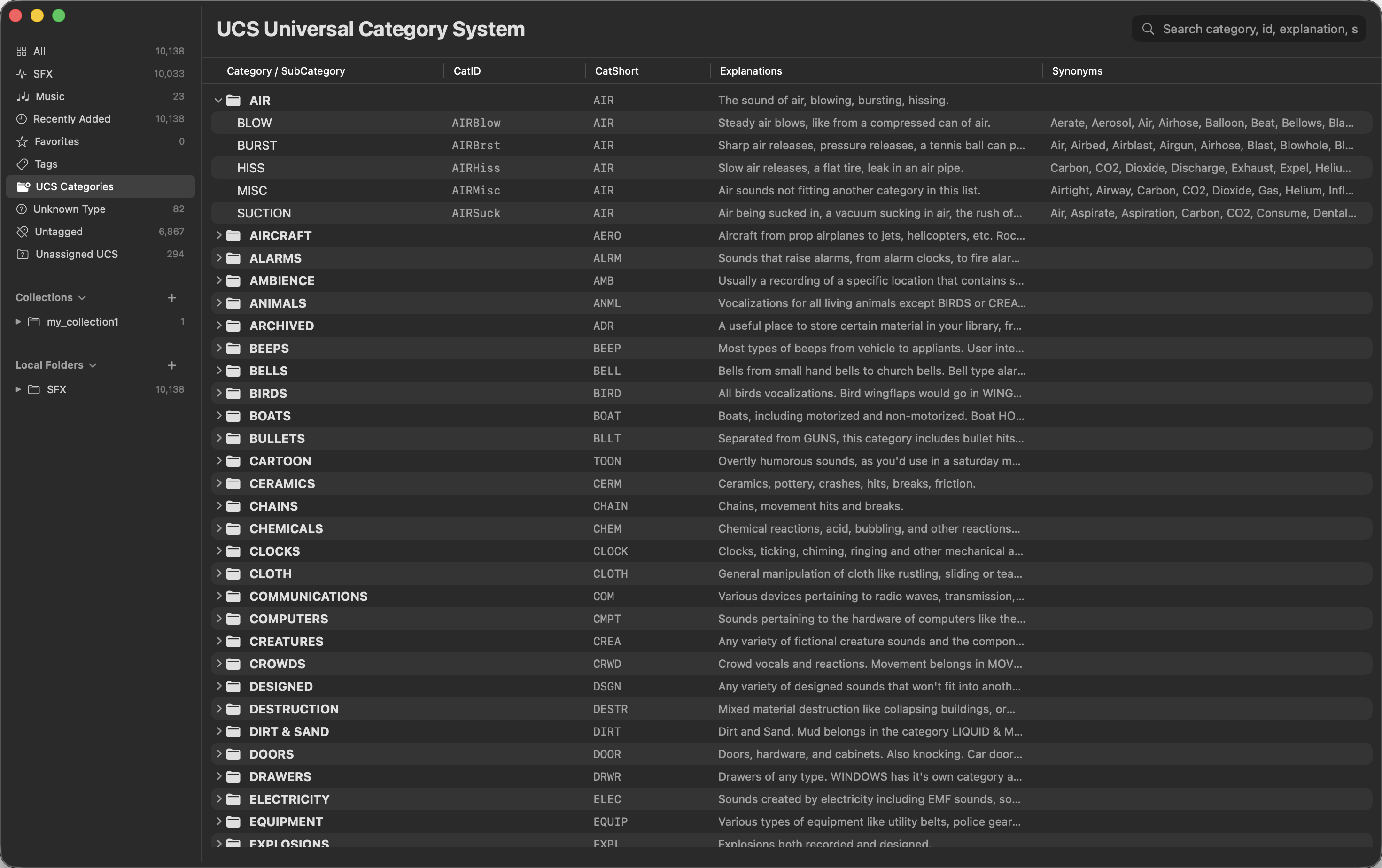
UCS organizes sounds into a structured system consisting of Categories and SubCategories. This helps keep sound libraries organized consistently across the industry.
Assigning & Modifying UCS
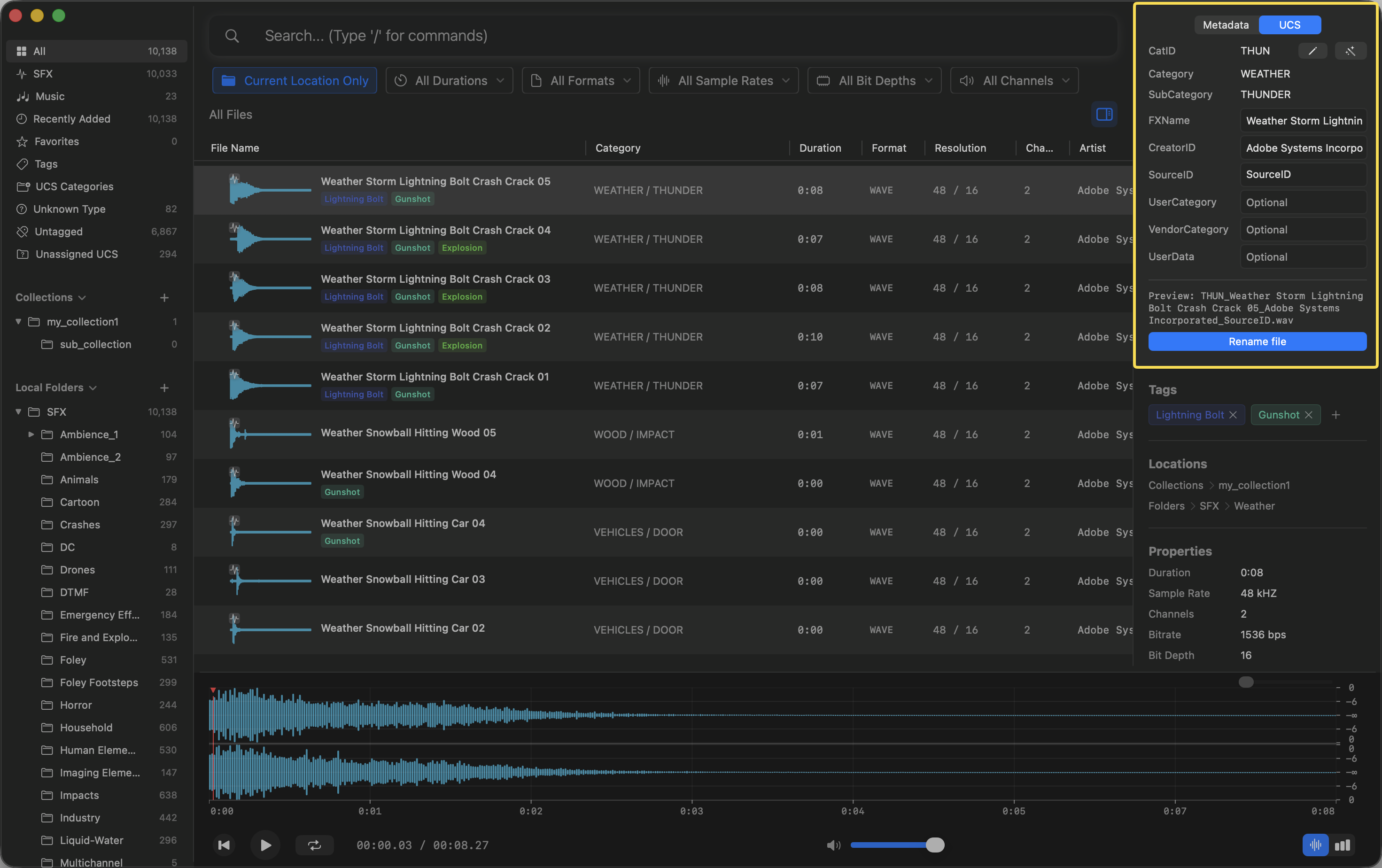
You can view and modify the UCS Category and SubCategory of your assets:
- Select an audio file in the asset list.
- Open the UCS tab in the right Inspector panel.
- You can manually search and select the appropriate Category and SubCategory, or autofill from metadata.
- You can also rename the original file to follow the UCS naming convention by clicking the Rename file button at the bottom of the section.
Automatic Inference
Curlo Pro users can use AI to automatically infer the best UCS category based on the file’s metadata and semantic content:
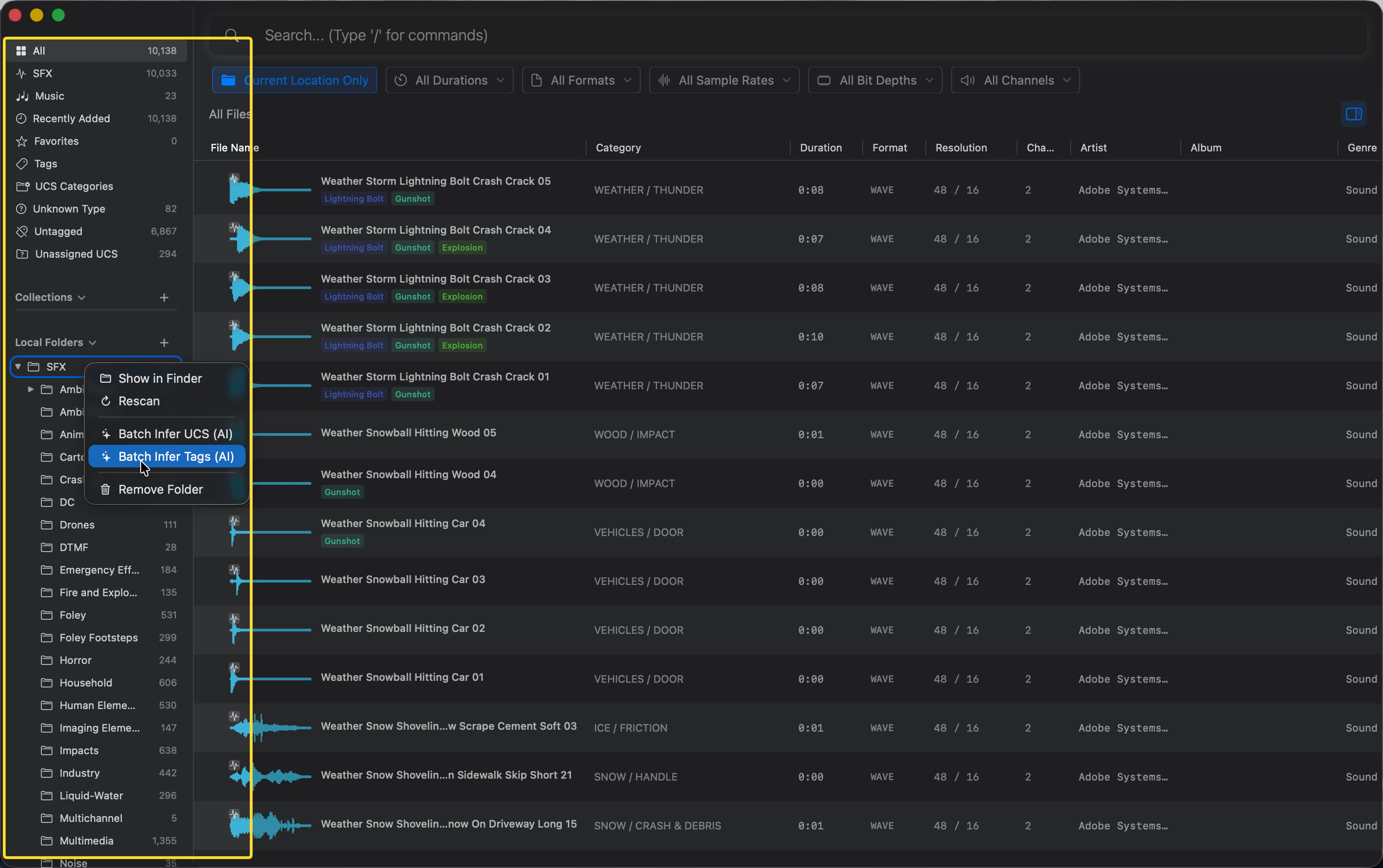
- In the left Sidebar, right-click on any Folder, Collection, or built-in Group.
- Choose Batch Infer UCS (AI) from the context menu.
- Curlo will analyze all files within the selected group and assign appropriate UCS categories.
Batch Writing & Batch Renaming
Once inference is done, you can write the results back to your files in bulk. Right-click any folder, collection, or built-in group — the context menu offers two Pro features:
- Write UCS to Metadata — Writes each file’s UCS fields into the bext chunk of WAV files following the official UCS spec (the Description is composed of the seven fields CatID, UserCategory, etc.; Originator carries the CreatorID and OriginatorReference the SourceID). Any other bext fields already in the file are preserved as-is; non-WAV files and files without UCS data are skipped automatically.
- Rename Files by UCS — Batch-renames files on disk to follow the UCS naming convention, with library records updated in sync. Files whose names already comply are skipped; renames that differ only in letter case are handled correctly too.
Both operations show a confirmation dialog and a progress panel. When finished, you’ll see how many files succeeded and failed — conflicts such as an existing target filename or an inaccessible file are listed with the reason, without affecting the rest.
Note: Both operations modify files on disk and cannot be undone. Try them on a small folder first to check the naming results before running them across your whole library.
Filtering by UCS
To filter your library by UCS Category or SubCategory:
- Type
/ucsin the search bar. - Enter the CatID, Category or SubCategory you’re looking for (e.g., “AIRBlow” or “Dog”).
Alternatively, you can quickly filter by double-clicking any UCS category in the UCS table.